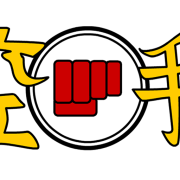
November 9, 200422 yr Hiya.. just wondering if you can confirm for me what this http://members.chello.nl/~p.bouwens/Zanshin.gif translates to, and if it is similar to the symbols in my avatar just over on the left.. and give your best description for each.. if not if anyone could recommend someone that would know I'd greatly appreciate it..
November 9, 200422 yr Zanshin means "follow-through" (like in archery, or basketball). The first character means "remaining, leftover", that sort of thing. The verb Nokoru, which means remaining, uses this same character. The second is "Heart, spirit, or mind". So, while everything is being done and even after everything is done, your mind and heart still remain, as opposed to being distracted elsewhere. This would make sense in the martial arts usage of the word, which means continual focus. To be honest, this is the first time I've seen the characters for zanshin written out (not exactly everyday Japanese), so that was interesting for me to see. Martial Arts Blog:http://bujutsublogger.blogspot.com/
November 9, 200422 yr Author That's exactly what I was hoping to hear... so both symbols (the .gif link and my avatar) are more or less the same, only written different...
November 10, 200422 yr Yes, they are the same. The one in the link is written in a more cursive style, while the one in your avatar is more of a text-style. Martial Arts Blog:http://bujutsublogger.blogspot.com/



Create an account or sign in to comment